
- /
- /
- /
Job Project
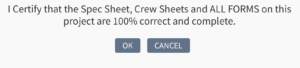
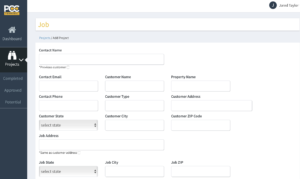
Creating a Job Project: Fill in the information in the boxes. If the Job Address is the same as the Customer Address – select the small checkbox. Enter the Date Job Promised and any other information that the Operations Director / Lead Tech needs to know and then either Save & Close or Send To Approved. Save & Close allows you to come back and work on it again before sending to Operations. Once Send To Approved is selected – the information cannot be changed except the Notes Field. A warning will pop up and ask you to Verify that ALL your information is correct:
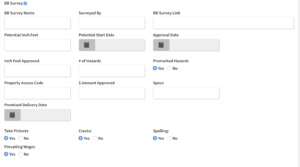
If you have a BidBoss Survey, check the box and enter the Survey Name, Surveyed By and Enter the BB Survey Link. Enter the Potential Inch Feet – this helps Operations plan ahead. Enter the Potential Start Date, Approval from Customer Date, Inch Feet Approved, Number of Hazards, Promised Delivery Date and really important.. Specs. Specs is where you enter information like – All Hazards 3/8 to 7/8 or All Hazards Marked or All Hazards > 1/2 Inch.
Project Notes is where you enter any additional Specs or any other information the Operations Director or Technicians needs to know about the Job. Upload the Crew Sheet, Proposal if you have one, Signed Repair Approval and the Survey Map from BidBoss. The Crew Sheet MUST be in Windows CSV format.
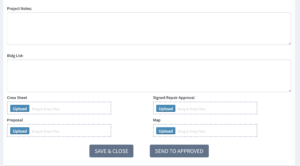
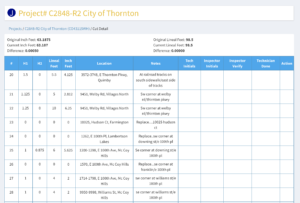
I would STRONGLY RECOMMEND you Save & Close first and then View and Review your Job information as well as double check the Cut Sheet has uploaded and looks correct. Here is an Example of a Cut Sheet after its been uploaded into the Terminal:
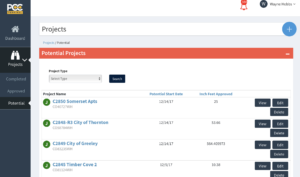
If you Save & Close, the Job Project is moved to the Potential section under Projects and you can View, Edit or Delete it. It shows the Potential Start Date and Inch Feet Approved. Operations also see’s this information for planning purposes.
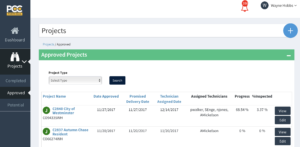
If you Send To Approved, the Job Project is then sent to Operations for further action and moved to the Approved section under Projects. When Operations has taken Action on your Job you will see Date Approved, Promised Delivery Date, Technician Assigned Date, The Assigned Technicians, Live Progress of the Cuts and the Percent that has been Inspected. Once you Send to Approved, the Job CANNOT be edited. Only the Notes Field can be updated.