
- /
- /
- /
Demonstration’s – Operations
The technicians will often get asked to accompany a sales person to do a demonstration cut.
You’ll be notified through the Terminal on your iPad. You’ll know that they are demonstrations because you’ll have a yellow circle with a “D” in the middle.
Instead of having details of the particular trip hazard on your iPad, you’ll have the information about the customer and when the project is scheduled (date), and other instructions from the sales person.
When a salesperson needs to set up a demonstration for a customer, they will create it in the terminal and send it to Operations. The data provided will be a little less involved than the other projects.
It will show up in the dash board with a yellow circle and a “D” in the middle.

You can View or Edit the Demonstration.
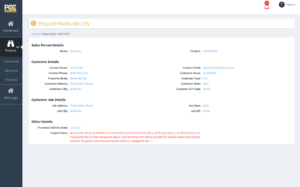
If you Edit the Demonstration, you can then make assignments to the technician you’d like to have go cut the Demo.
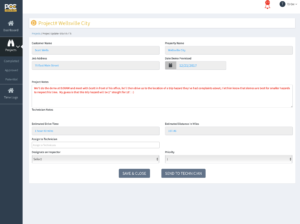
Once you’ve made your assignment, you can send it to the technician.
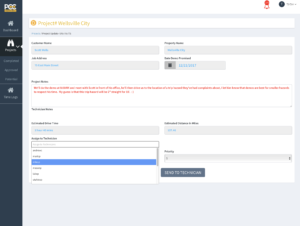
Because the Terminal requires that we do inspections, it will ask for you to assign an inspector. For demos we typically just assign the same tech.
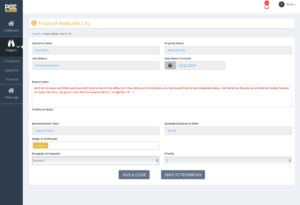
Once it’s assigned, it will show up in the dashboard with the person’s name who is assigned the project. The technician will then get the alert and notification on his iPad of the demonstration.

This is what the technician will see on their dashboard.
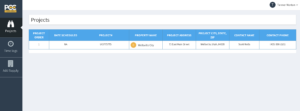
The technician can click on the yellow dot and it will bring up the details on the iPad.
At the designated time, the Technician can then meet the Salesperson and go execute on the demonstration.
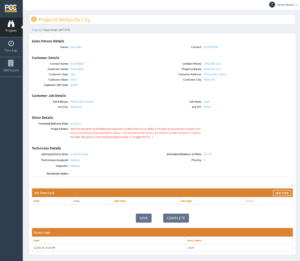
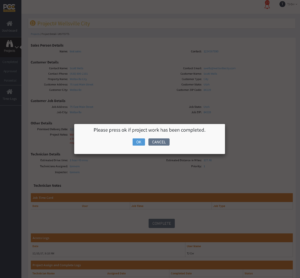
Once the demonstration is complete, the Technician will click “Complete” it will ask for a certification that everything is good, and then the project will disappear from the iPad.

Operations will then get notification that it’s been completed and can review the details and then mark as Complete and it will move back to the SalesPerson.
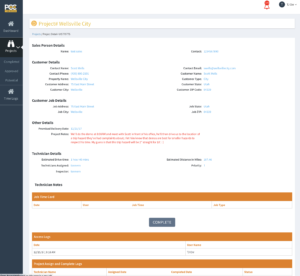
Once the project is completed, it will move to the completed section of the dashboard.