
- /
- /
- /
Terminal Users
The second panel down is the the User panel. This shows your list of users. You can Add, Edit, Delete users from this screen. The Plus Button on the top right is how you add Users.
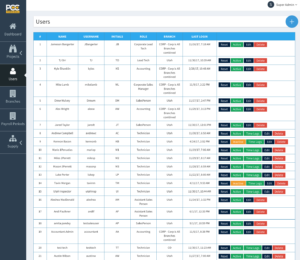
User Types: There are currently 10 types of users. You may call these users by different names than we do (and our’s have already changed) but the basic user functions are the same.
- Corporate Sales Manager – This user can see all the Sales Activity of all the Sales People in your Territory.
- Corporate Lead Tech – This user can see all the Operational Activities of all the offices in your Territory.
- Branch Manager – This user can see all the Sales and Operational Activities of their local office.
- Lead Tech – The most important user. This is the Operations Manager of the office. Assigns technicians to Jobs, Coordinates Scheduling with the Sales People, etc.
- Technician – Any Technician that will be assigned work. Jobs to be cut, Surveying, Demo’s, etc.
- Corp Supply Manager – Skip for now. These are a work in progress.
- Supply Manager – Skip for now. These are a work in progress.
- Assistant Sales Person – This is the Inside SalesPerson assisting the SalesPerson. They can enter data for the Salesperson.
- Salesperson – They can enter data and are Authorized to send Projects to Operations.
- Accounting – This is where invoicing takes place.
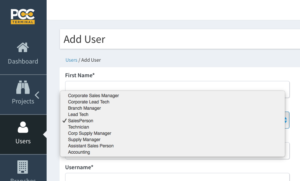
Add User Screen:
Enter basic information about the User, the User type and Branch if more than one office. Yearly Goal, Annual Budget and Budget Remaining apply to Salespeople.
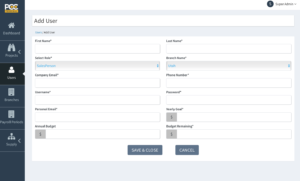
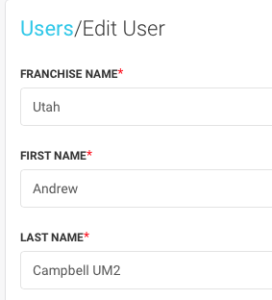
In order for Not To Exceed Production data from BidBoss to be credited to the correct technician, make sure you enter the Terminal Name into the Technician Name in BidBoss. The initials are used to credit Inch Feet in the Terminal. So in this example, Andrew Campbell has the initials AC in the Terminal. In BidBoss make sure the First and Last name match up with those initials.