
- /
- /
- /
Survey Project
If you want Operations to send a Technician to do a Survey, you can request one through the Terminal.
Click on the upper right hand corner blue “+” button to add a Project.
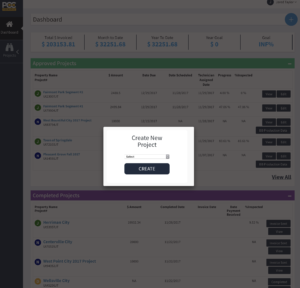
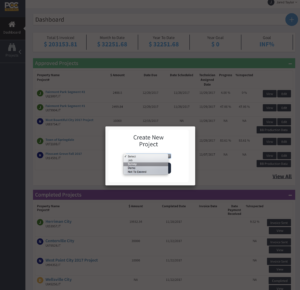
Select the “Survey” option under New Project and click “Create”
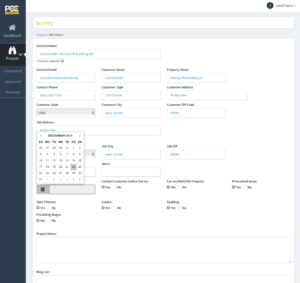
Fill in the required information, including the specs and instructions for the Technicians. The more specific the better.
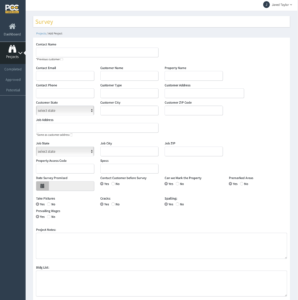
Select a completion date (Survey Promised Date) and fill out any other instructions you want the technician to know in the field
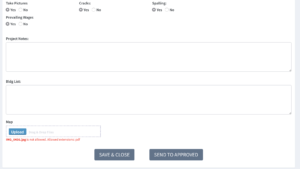
Once you’ve entered in the data, upload a map of the property or the area where the survey is to take place. This may not always be necessary, however oftentimes the customer indicates a specific area to be surveyed. Only .pdf documents are allowed.
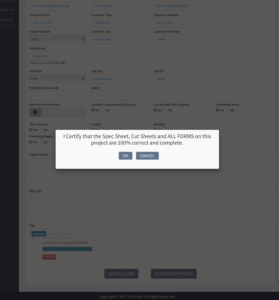
You have the option to “Send to Approved” and certify that all the information is correct and ready to send to Operations or you can “Save and Close” the Project and finish later.
The Survey will now be sent to Operations for scheduling and will show up in the approved section with a yellow circle and an “S” inside.
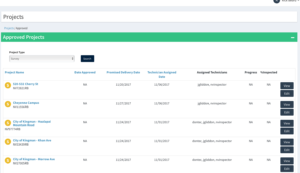
Once the survey has been completed by the technician, Operations will have the chance to verify it and then send it back to the Salesperson. The Survey will show up in the “Completed Projects” section, and you can find the corresponding BidBoss Link to make a Proposal.
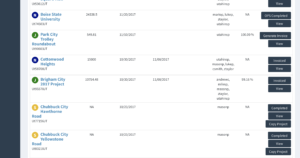
If the Survey turns into a Job for the customer, you can select the Copy Project button. This will copy all the customer information over into a Job so you don’t have to enter the data again.